 Say it with me now, “It’s okay to not know everything.” This little piece of advice has helped me tremendously in my endless pursuit to master all things Oracle Eloqua. Whether you’re an Eloqua savant or just getting your sea legs, there’s always an opportunity to learn something new. That being said, my intent here is not to drown you with the painfully obvious and mundane email editor “how-to’s,” but to highlight key areas of interest that you either may not know about, under-utilize or haven’t had the pleasure of re-introducing yourself, post release updates.
As the title states, this will be 101-type coverage, however, I’ve found that many of these tips are commonly asked questions on Topliners and/or brought up by my clients. Hopefully, everyone will be able to use a few of these tips as you expand your Oracle Eloqua knowledge.
1) Build: Personalize your subject line
Let’s get straight to the point with this one. Yes, you can insert field merges into Subject Lines. Simply drag from your Field Merge Browser into your subject line. Boom!

2) Review: Preview your Email
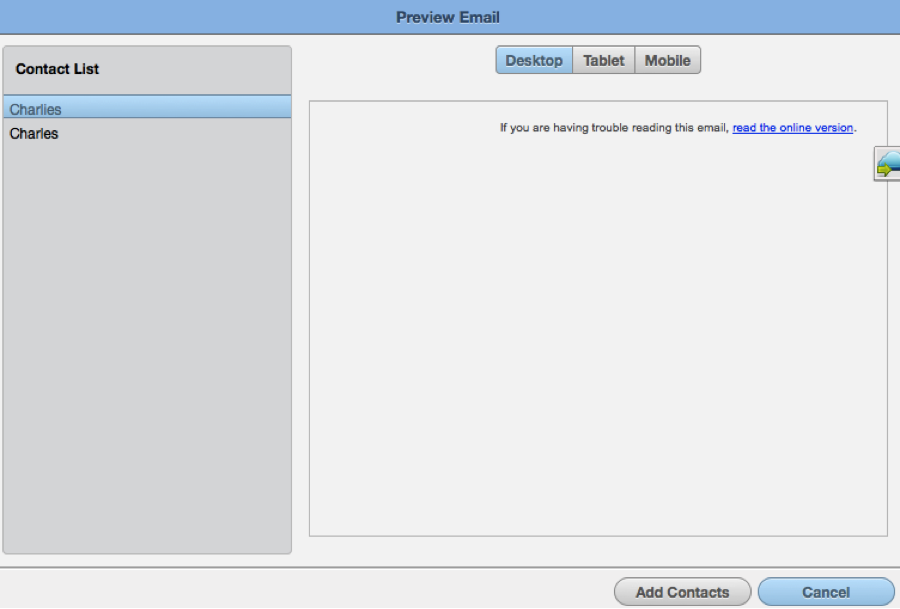
If you haven’t taken the opportunity to catch up with our old friend, “Preview” (Gear Icon > Preview), now would be a great time to do so. In one of the more recent releases, Oracle Eloqua enhanced this feature to now include the ability to preview a respective email across multiple contacts (max 10), as well as rendering within Desktop, Tablet and/or Mobile aspect ratios. This will save you lots of time when testing assets that contain personalization, dynamic content, etc.
3) Edit: Use your Digital Eraser/s
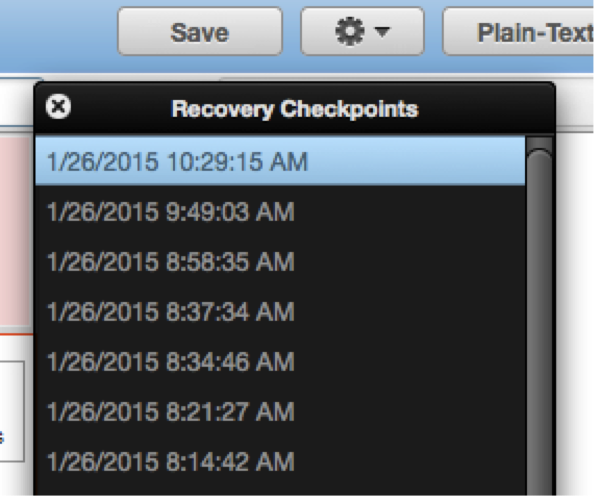
Made a mistake? Not to worry take advantage of Eloqua’s Recovery Checkpoints feature (Gear Icon > Recovery Checkpoints). This feature will allow you to restore your asset to its previous state (listed out in date/time format). A max of the 12 most recent states are available for selection. The states are captured within any of the following conditions: after every save, upon opening the Recovery Checkpoint tool and/or every 10 minutes auto-magically!
In addition to the above, you can also utilize Eloqua’s Undo/Redo features (Gear Icon > Undo or Redo). Note, this feature is only useful in-between saves, hence the decision to lead in with Recovery Checkpoints. Like Undo/Redo, don’t forget you can always opt for the keyboard short cuts: Undo = command + z (control + z for PC) and Redo = command + y (control + y for PC).
4) Defend: Protect your Ass(ets)
You work hard to perfect your emails. Safeguard your efforts by utilizing Oracle Eloqua’s Editor Layout Tools (Tool Box icon > 4th Tab = Layout Tools > Position Area). You have the ability to lock object positioning within your canvas. Once locked, the objects have to be unlocked to change any properties (e.g. placement, text, etc.).
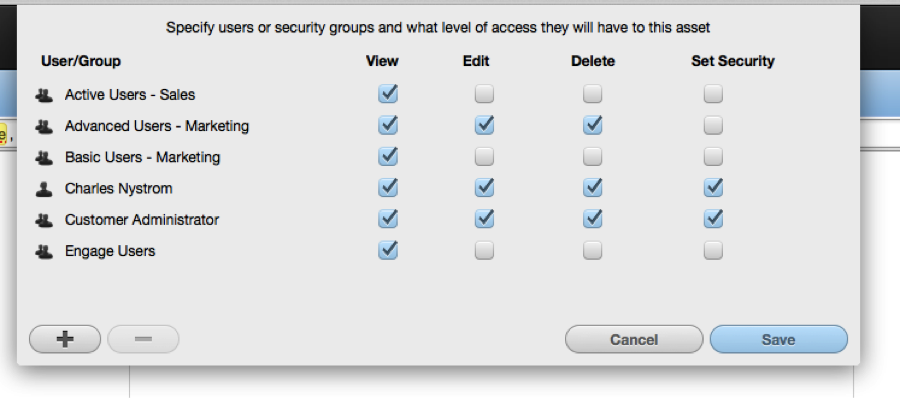
If you want to be even more territorial, take advantage of setting asset-level permissions (Gear Icon > Permissions). This feature allows you to specify users or security groups and what level of access they have to each asset (e.g. View, Edit, Delete, Set Security).
5) Report: Get your Email Visual Click-through Report
A new feature you may not be aware of is the Email Visual Click-through Report (Gear Icon > Click-through Report). This feature must be enabled within your instance, as it’s part of Oracle Eloqua’s Beta program. This option allows you to quickly see the click-through activity on respective assets in a heat-map/bubble counter visual fashion.
This is not only a great resource to visually review what’s being clicked, but also “where,” to potentially better understand recipient behavior.
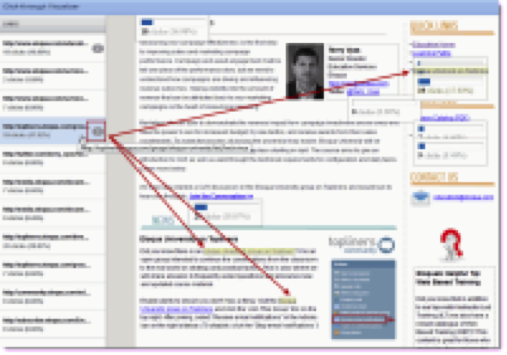
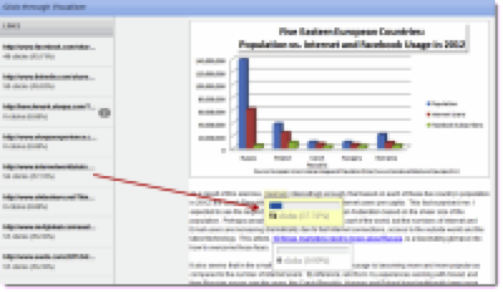
Note: The Email Visual Click-through Report has been made temporarily unavailable. From what I’ve gathered, Oracle Eloqua’s development team has moved this to Closed Beta as they begin to introduce improvements/enhancements for an upcoming release. It’s my hope that this handy feature will be moved out of beta soon so the functionality will be available for everyone.
Hopefully you’re walking away with a trick or two to add to your Oracle Eloqua repertoire. Oracle Eloqua Education Services are a great foundation, but delivery can be high-level, as resources and tools to be utilized will vary based on client need. So, as a collective community (Eloquans), experiment, share your use-cases and respond to your peers’ inquiries on Topliners or post your favorite tips and tricks below so we can continue learning from each other.
Share This
About the Author: Relationship One